
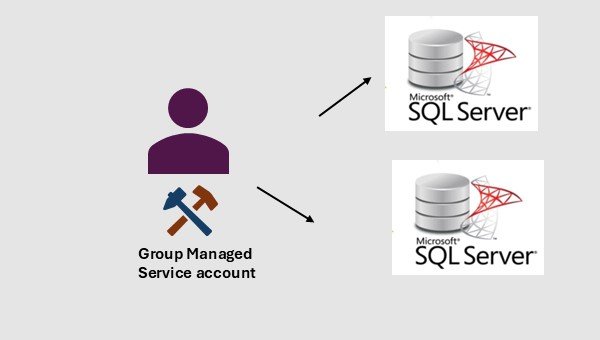
Using Group Managed Service Accounts (gMSA) for SQL Server
1. Why Use gMSA for SQL Server
- Automatic password management
> Windows rotates gMSA passwords every 30 days (default) with 120‑character complex values.
> No manual resets, no service interruptions, no password expiry incidents. - Improved security posture
> Passwords are never known to humans.
> Reduces insider risk and credential theft surface.
> Supports Kerberos authentication and SPN management. - Centralized lifecycle management
> Managed entirely through Active Directory.
> Easy to delegate control to specific teams (DBA, infra, security) - High Availability friendly
> Works seamlessly with SQL Server Failover Cluster Instances (FCI) and Always On Availability Groups.
> Same gMSA can run SQL services across multiple nodes.
2. Challenges and Considerations
- Active Directory Requirements
> Domain functional level must be Windows Server 2012 or higher.
> At least one KDS root key must exists.
> Domain controller must support gMSA. - SQL Server Limitations
> Some legacy systems (eg: CmdExec, PorerShell ) may require additional rights.
> Proxy accounts need explicit configuration for SQL agents. - Cluster Permissions (for Always On or FCI)
> gMSA must be added to the Log on as a service right on all nodes.
> gMSA must have permissions to read cluster objects. - Backup/Restore and File System Access
> gMSA needs explicit NTFS permissions on Backup directories
> gMSA needs explicit NTFS permissions on File Shares, Data/Log file locations.
3. Implementation Steps
- Step 1: Create the KDS Root Key (if not already created)
PowerShell> Test-KdsRootKey -KeyId (Get-KdsRootKey).KeyId
Powershell> Add-KdsRootKey -EffectiveImmediately - Step 2: Create AD Group
We will have to create an AD group, and them add computer objects into that group.
PowerShell> New-ADGroup -Name <AD_Group_Name> -Description “Security group for APP1” -GroupCategory Security -GroupScope Global
PowerShell> Add-ADGroupMember -Identity <AD_Group_Name> -Members <SQLVM1$>, <SQLVM2$> - Step 3: Creating the gMSA
PowerShell> New-ADServiceAccount -Name <New_gMSA_Account_Name> -PrincipalsAllowedToRetrieveManagedPassword <AD_Group_Name> -Enabled:$true -DNSHostName <DNS_Host_Name> -SamAccountName <New_gMSA_Account_Name> -ManagedPasswordIntervalInDays 30 - Step 4: Install & Test the account on each node
PowerShell> Install-ADServiceAccount -Identity SQLSvc01
PowerShell> Test-ADServiceAccount -Identity SQLSvc01 - Step 5: Grant Local Rights
On each SQL node;
Grant gMSA to Log on as a service
Grant NTFS permissions to SQL Data/log directories, Backup directories and any File shares. - Step 6: Configure SQL Server Services
On each node, from SQL server configuration manager,
Change SQL server account to the gMSA. - Step 7: Validate SPN and Kerberos
To check SPN:
setspn -L domain\gMSA$
To check Kerberos:
SELECT auth_scheme FROM sys.dm_exec_connections WHERE session_id=@@SPID;
4. When gMSA Is a Strong Fit
- Always On Availability Groups
- Failover Cluster Instances
- Environments with strict security/compliance
- Large SQL estates where password rotation is painful
5. When You Might Avoid gMSA
- Cross‑domain SQL deployments without trust
- SQL Servers not joined to the domain
- Legacy applications requiring interactive logon
IntelliOpz offers comprehensive solutions to enhance your security posture and resolve common challenges associated with implementing Group Managed Service Accounts (gMSA) in SQL Server environments: